Charlotte, this may look a bit lengthy but after it's said and done, it really should be a quick fix.
The malware has possibly just changed one registry value that's essentially preventing any software from installing. First you'll need to make sure where your "appdata" folder is supposed to be.
#1: Find "appdata"
- Go to My Computer and click on the Tools menu, then Folder Options.
- Click on the View tab.
- Scroll down to "Hidden files and folders" and make sure "Show hidden files and folders" is selected.
- Click OK.
- Click the Start button and select Run (if you're using Vista and it doesn't show, just press WindowsKey+R).
- Type: %userprofile% and press enter.
- Make a note whether or not there is an "AppData" folder or an "Application Data" folder.
#2: Editing the Registry
WARNING: Editing the wrong parts of the registry can make your computer very sad. I'll try to be very specific of what to do here.
If you don't feel comfortable, do not proceed. We'll work something else out.
- Click the Start button and select Run (if you're using Vista and it doesn't show, just press WindowsKey+R).
- Type: regedit and press enter.
- You should see a window similar to below.
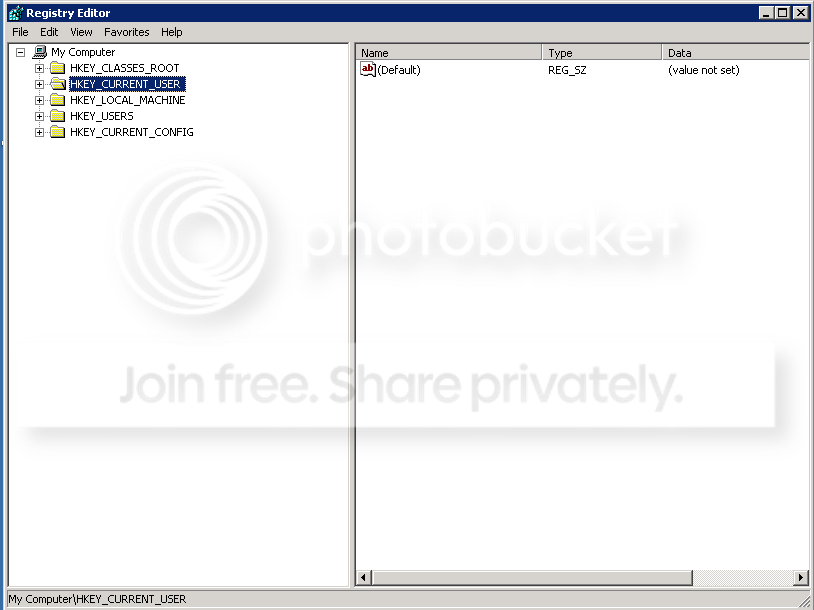
- Click on the HKEY_CURRENT_USER folder.
- Open up the Find dialog by pressing CTRL+F (or by going to the Edit menu and selecting Find).
- In the text box, type in: User Shell Folder and click Find Next.
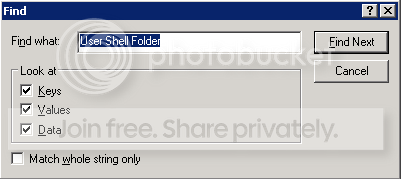
*It should bring you to the path: "HKEY_CURRENT_USER\Software\Microsoft\Windows\Curr entVersion\Explorer\User Shell Folders". If not, stop here and tell me what the path says at the bottom of the window.
- On the right pane of the window, there should be an "AppData" entry. This entry's value should be the path of what we found in #1 above.
Double-click on that "AppData" entry and it should open the Edit dialog.
- Edit this value so it says either %USERPROFILE%\AppData or %USERPROFILE%\Application Data depending on what path you found in #1.
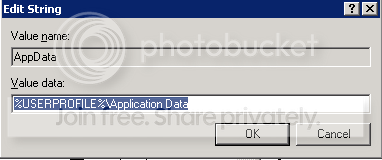
- Click OK and close the Registry Editor window.
#3: Boot into
Safe Mode and install your anti-malware tools (e.g. MalwareBytes Anti-Malware, Spybot: Search and Destroy, etc). You can boot into Safe Mode as Jack (Robmac7777) has noted above. Press F8 right before the Windows logo splash screen comes up, and then select Safe Mode.
Feel free to PM me if there's any trouble with these instructions. I'll be happy to help. Again, if you're feeling uncomfortable with the Registry, please do not proceed with #2.